AESLocker
Windows file protection
Lock important files with a password and open .Lock files in a few simple steps.
Download didn't start? Please wait 10 seconds... Click here
300Due to Some antivirus vaccine stopping the app running
- Check your internet connection and antivirus software.
Make sure your PC is connected to the internet. Some third-party antivirus programs, other than Windows Defender, may interfere with AESLocker. If you trust the installer and have confirmed that your antivirus is blocking it, try temporarily turning off real-time protection, then turn it back on after testing. If it cannot be turned off and you choose to remove that antivirus, go to → , select the program, and click .
Still having the same problem? Let us know ↗.
- Try your connection’s IPv6 settings.
If the steps above do not help, IPv6 may be enabled on your connection, including a mobile hotspot. Try temporarily turning off IPv6 on your active connection, then reopen AESLocker.
- Press Win+R, type
ncpa.cpl, and press Enter. - Right-click your active Wi-Fi or Ethernet connection and select .
- Uncheck Internet Protocol Version 6 (TCP/IPv6), select , and try opening AESLocker again.
You can re-enable IPv6 by checking the same box again.
View Windows instructions ↗ - Press Win+R, type
200An older version of Locker is installed instead of the latest one
As of , the latest version of Locker is v0.16.
If the installer installs an older version that does not update, follow the steps below.
- Click Download on the left and run the installer. On the first page, select English under Installed language. If you agree, select the checkbox and click .
- On the second page, an older version will be installed unless you agree to both Update Terms (optional) and License Agreement (required). You can choose to accept both agreements to install the latest version.
Installing an older version may cause compatibility issues that prevent files from decrypting correctly, as well as reduced performance.
100I can't find ‘Unlock this file - Locker’ on my Windows 11 PC
If is missing from the right-click menu, try the following:
- Right-click the .Lock file you want to restore and select .
- Select , then enter the password to restore the file.
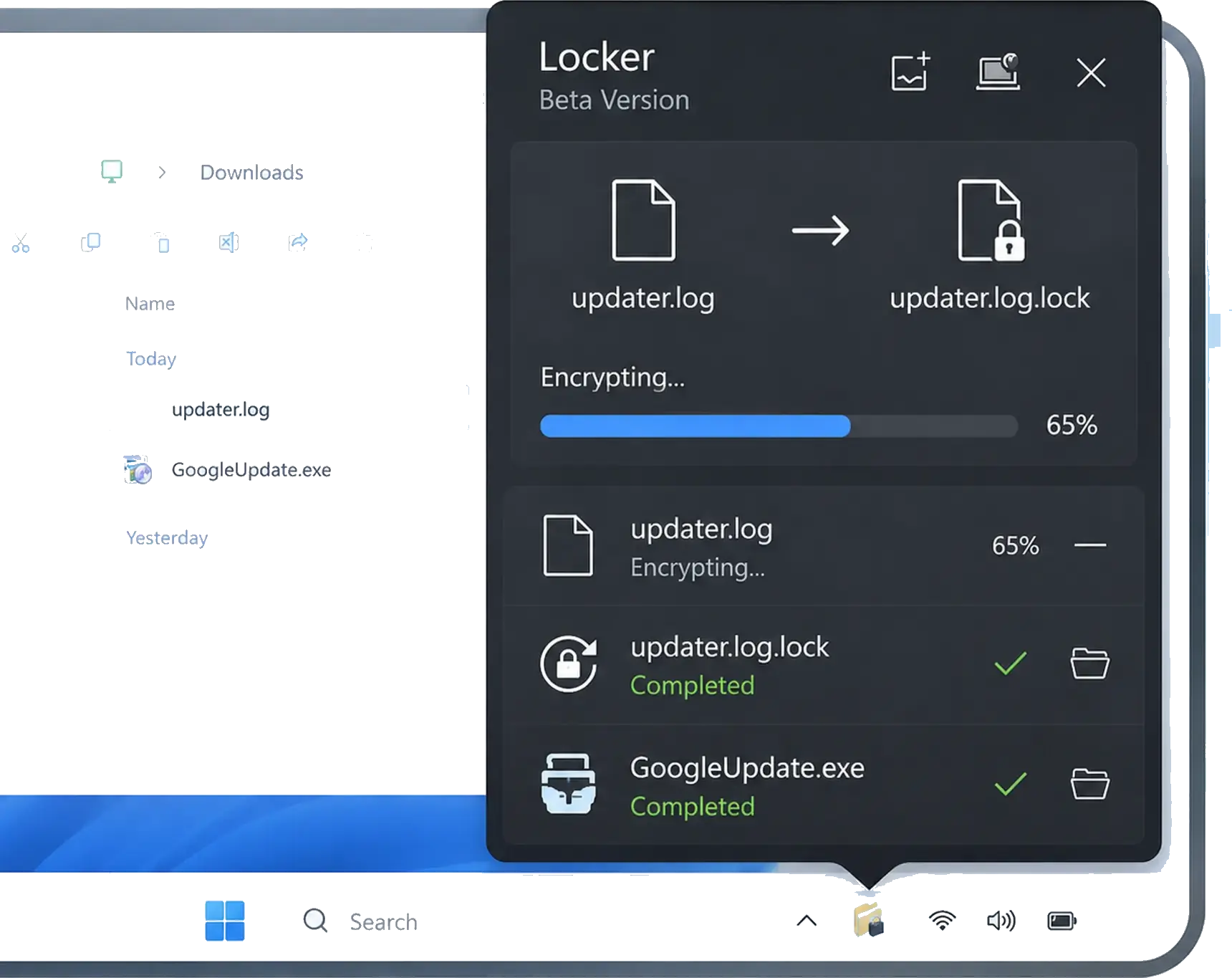
- If the option is still missing, restart Windows. Open AESLocker from the system tray at the bottom-right of the taskbar, then click to select the .Lock file directly.
If you cannot see the AESLocker tray icon, click the up arrow to show hidden icons.
How to use
Download and install
Run the EXE installer and complete the short setup.
Protect a file
Choose a file, set a password, and create a .Lock file.
Open a .Lock file
Enter the correct password to restore the original file. The restored file is created in the same folder.
Ratings & reviews
Practical feedback on setup, file protection from the archived beta experience.
Support
Send a question about installation, downloading, or opening a .Lock file.
Check the Downloads button at the top-right of your browser.